CNVisualizer User Guide
Note
This is subject to change, mostly minor aesthetic changes.
Loading Tracks
In order to view the data, files must be loaded from one of the top two menu buttons. Choose which button based on where the file is being loaded from:
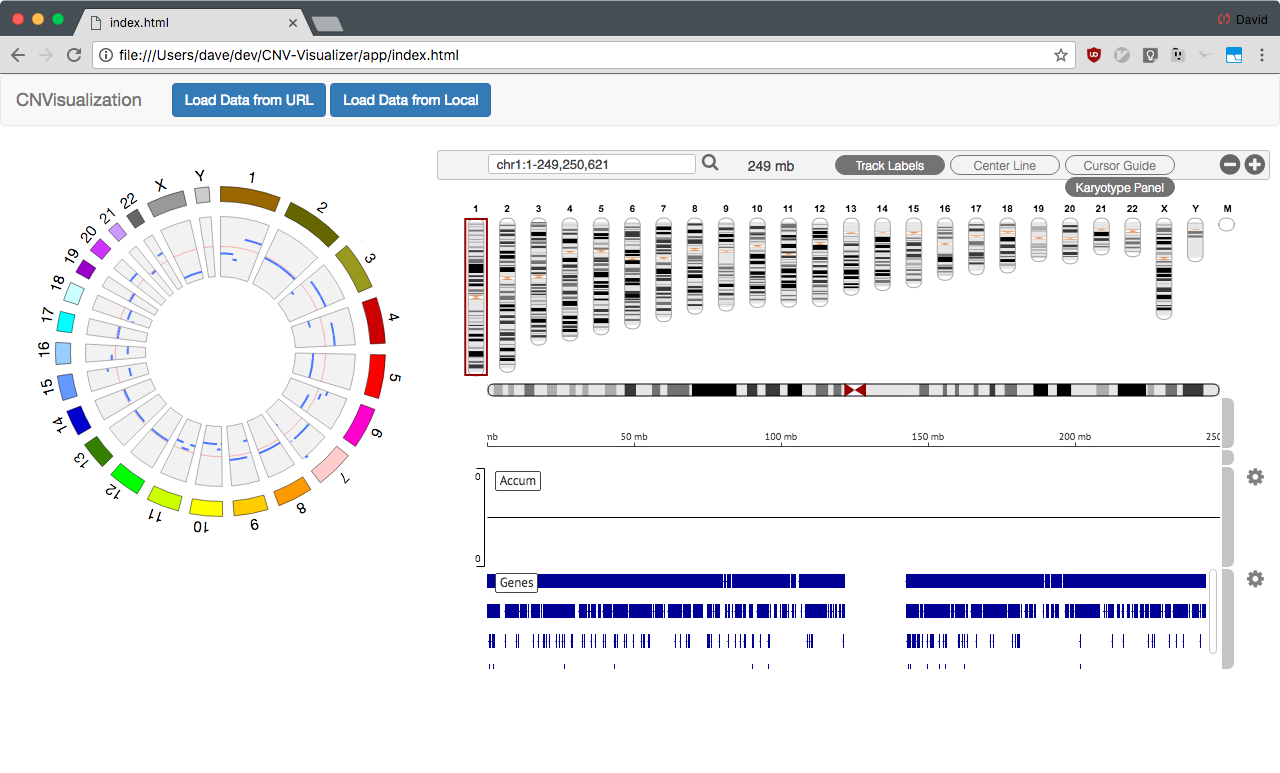
- File from a web server, must support Range Requests.
- File found locally on the computer.
And then you can input the relevant information, including
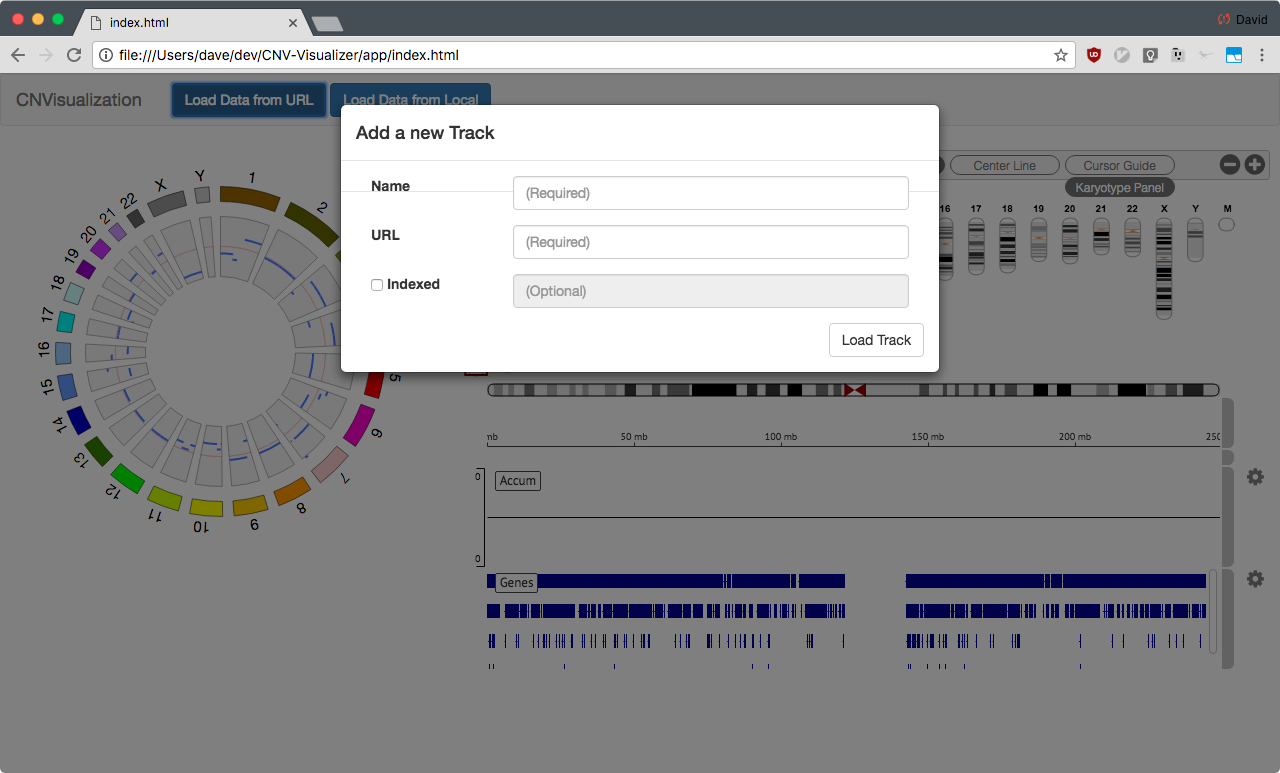

- URL or File, which is the data to be loaded. Track type is inferred off of the extension itself.
- Name, which can be changed later (todo: ref)
- Indexed, can NOT be used for local files. When used for URL files, it expects the indexed file to have the same URL, with the extra indexed extension (i.e. http://files.com/a.bam would be http://files.com/a.bam.bai).
Track configuration can be partially controlled with the gear icon, found to the right of each track. All of the following have an ability to set the threshold, which determines values that should not be shown. Color controls may be added in the future.
Using Local Files
In order to use local files, you have to select the file from the regular menu. However, this does have its limitations. The two main ones being:
- The file cannot be indexed, and therefore must be uploaded entirely.
- The track cannot be opened in a new window.
There are two solutions to this. First, you may upload the file directly to a server which can support range requests. This is possibly the easiest, if you have one available to you.
The other is to start a server from the folder with holds your files. This can just be a local server that you launch with a script.
If you have Python installed, first download this cors_server.py script. Then try running:
$ cd directory/with/your/data
$ python directory/with/cors_server.py
Segment Track
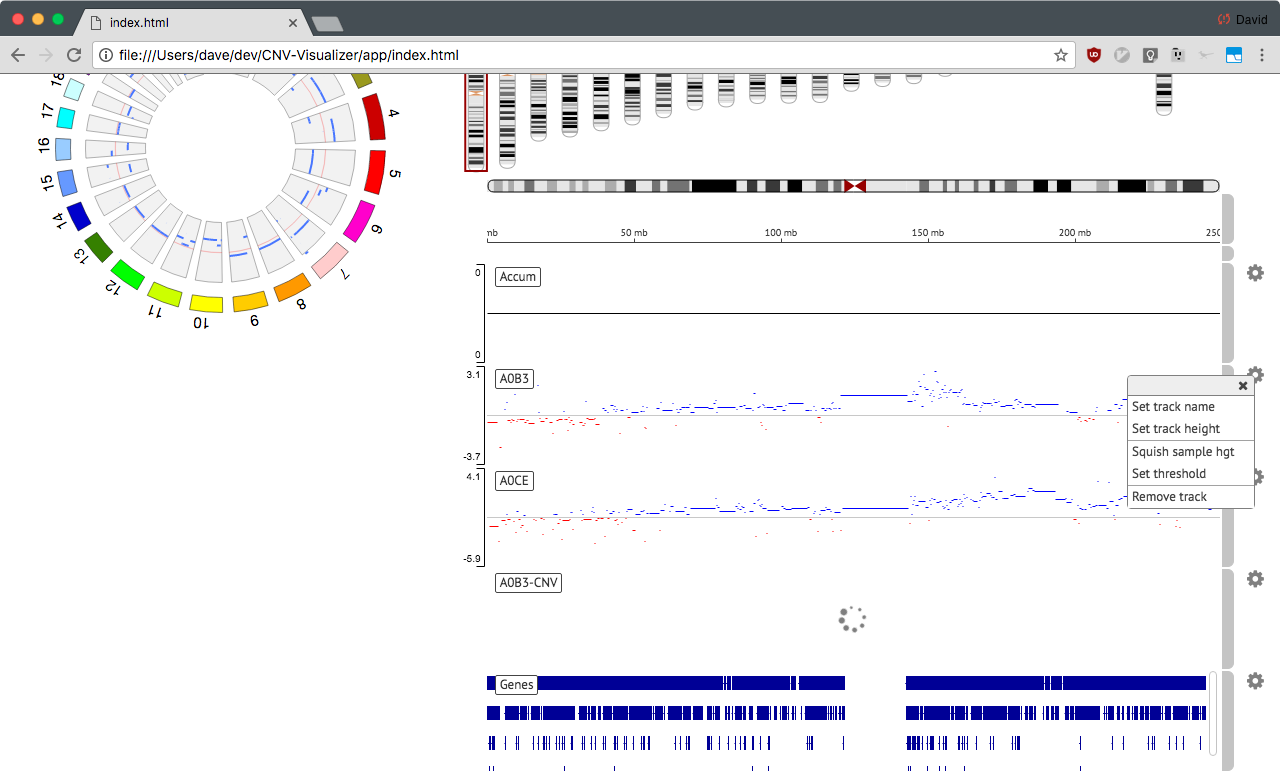
Segment tracks have no truly unique options to select from, as the sample height is a remnant from having multiple segments per track.
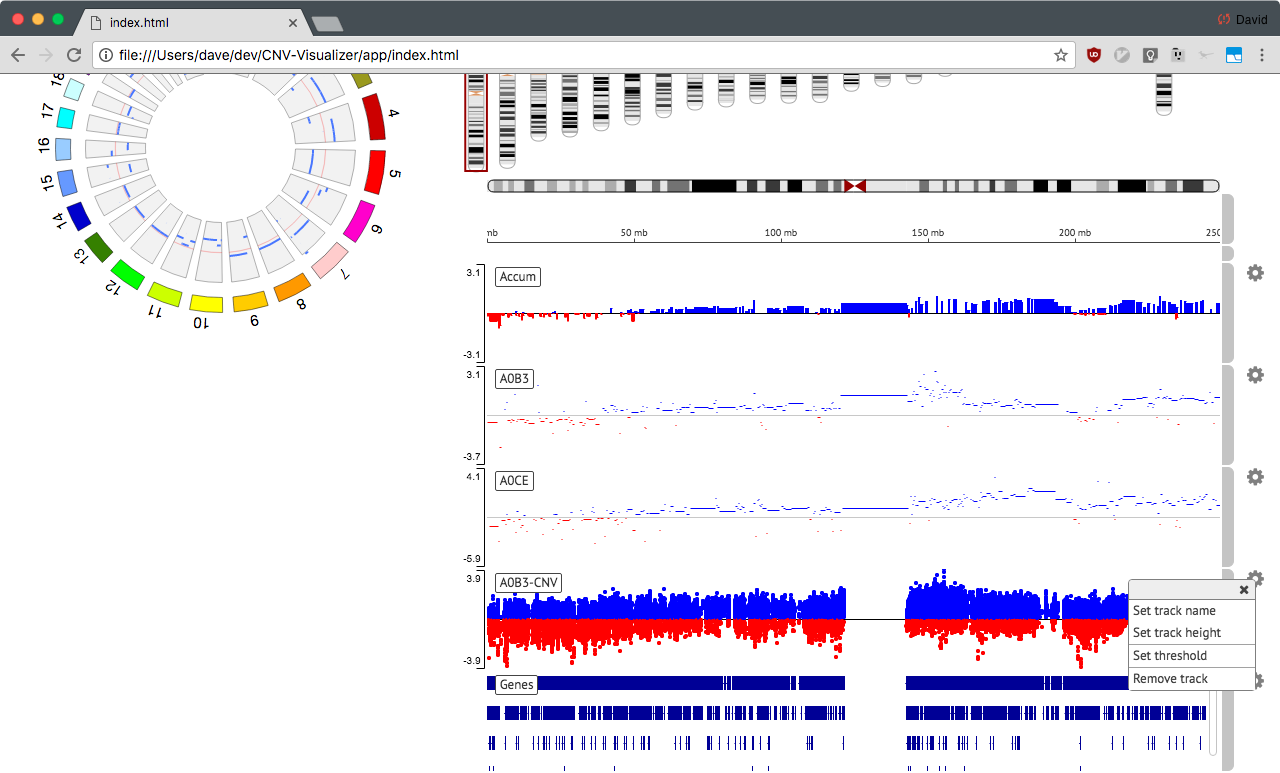
CNV Accumulated Track
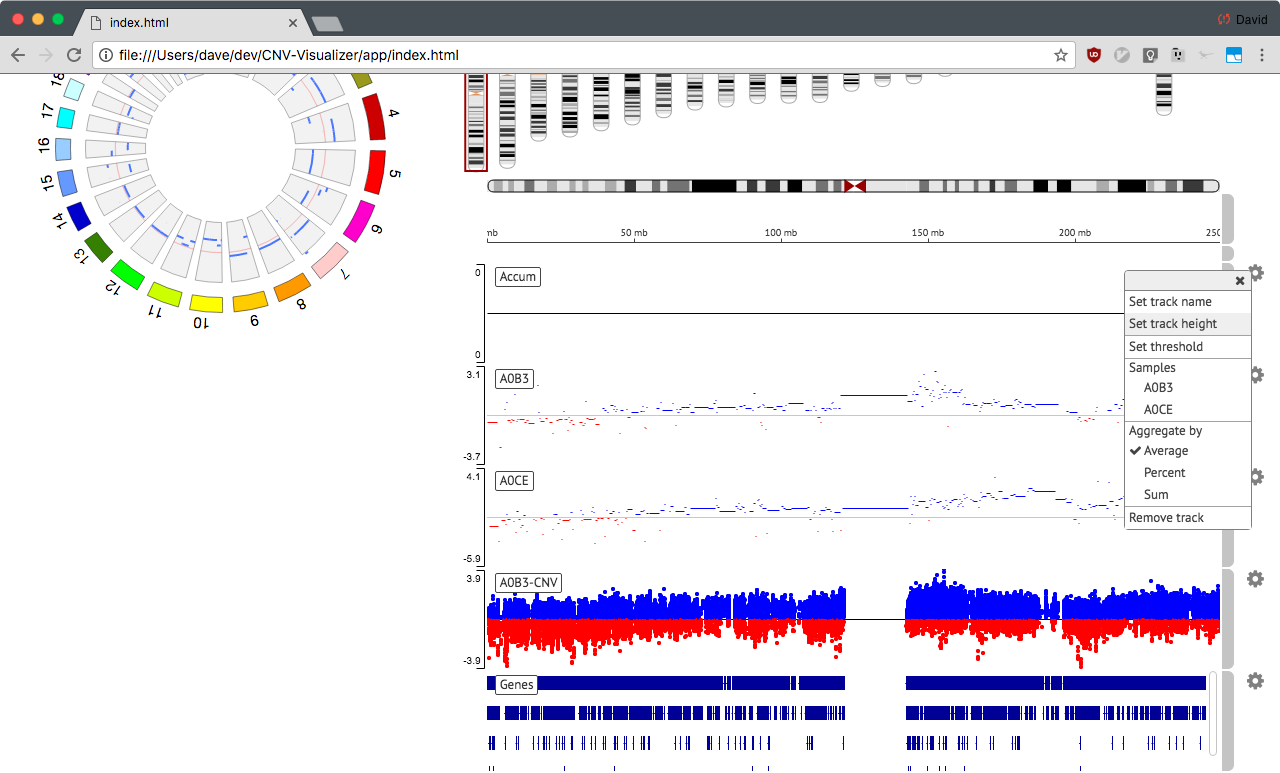
Accumulation tracks allow choosing the segment tracks to include in the aggregation of data, as well as selecting an aggregation method. These can be seen as above.
- Selected samples are marked with a checkmark.
- Enabled aggregation method is marked with a checkmark.